
How to Transcribe Audio with AI: A Step-by-Step Tutorial (2026)
Follow this hands-on tutorial to transcribe audio files, recordings, and meetings using AI. Learn how to get accurate transcripts with speaker labels, summaries, and multi-language support — all from your browser.
WhisperClaw Team
Showing English content because this locale has no published version yet.
AI transcription has moved from expensive enterprise software to free browser-based tools you can use in seconds. This tutorial walks you through the entire process — from capturing audio to exporting a polished transcript — using WhisperClaw.
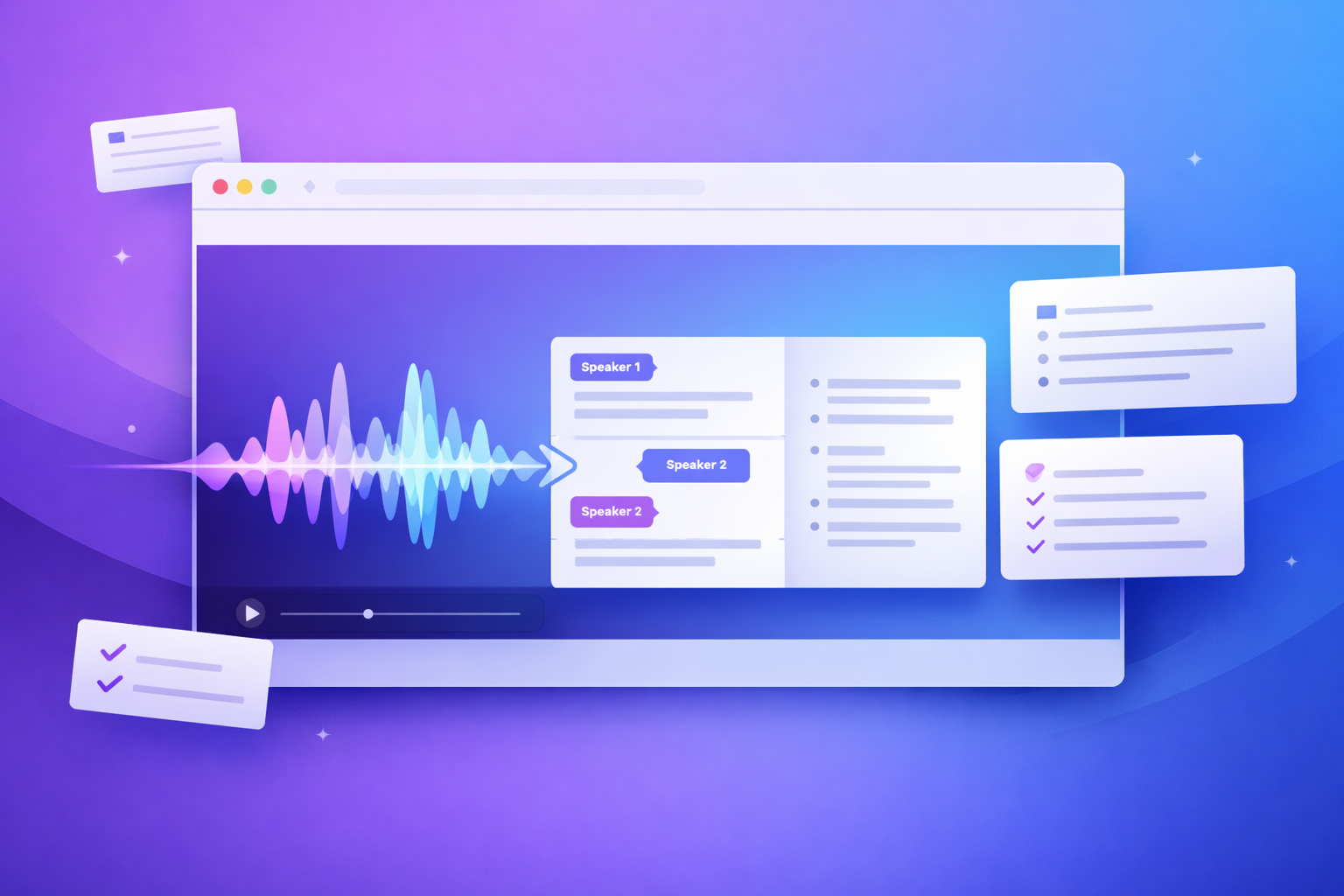
By the end, you'll know how to:
- Record audio directly in your browser or upload existing files
- Get AI-generated transcripts with automatic speaker detection
- Generate structured summaries from your transcripts
- Export everything to DOCX, PDF, TXT, SRT, or other formats
Prerequisites
All you need is:
- A modern browser (Chrome, Firefox, Edge, or Safari)
- An audio file to transcribe — or a microphone to record one
- A free WhisperClaw account
No software installation, no credit card, no API keys.
Step 1: Choose Your Input Method
WhisperClaw gives you three ways to get audio into the system:
Option A: Record Directly in Browser
Click the Record tab on the homepage. Grant microphone permission when prompted, then tap the red record button. You'll see a live waveform and timer as you speak.
- Free plan: up to 10 minutes per recording
- Pro plan: up to 2 hours per recording
This is ideal for voice memos, quick meeting notes, or capturing ideas on the go.
Option B: Upload an Audio or Video File
Click the Upload File tab and drag in your file. WhisperClaw supports:
| Category | Formats | |----------|----------| | Audio | MP3, M4A, WAV, OGG, FLAC, AAC, OPUS, AIFF | | Video | MP4, MOV, MKV, WEBM, AVI, 3GP, FLV |
Maximum file size is 2 GB on the Pro plan.
Option C: Paste a YouTube Link
Click the YouTube tab and paste any YouTube video URL. WhisperClaw extracts the audio and transcribes it automatically. Perfect for creating text versions of lectures, podcasts, or tutorials.
Step 2: Select the Spoken Language
After recording or uploading, choose the language spoken in your audio. WhisperClaw supports 40+ languages including:
- English, Spanish, French, German, Italian, Portuguese
- Chinese (Mandarin), Japanese, Korean
- Arabic, Hindi, Turkish, Russian
- Dutch, Swedish, Norwegian, Danish, Finnish
- And many more
You can also select Auto-detect if you're unsure — the AI will identify the language automatically.
Tip: Selecting the correct language manually gives slightly better accuracy than auto-detection.
Step 3: Start Transcription
Click Start Transcription. If you're not logged in, you'll be prompted to sign up — your recording or upload is preserved.
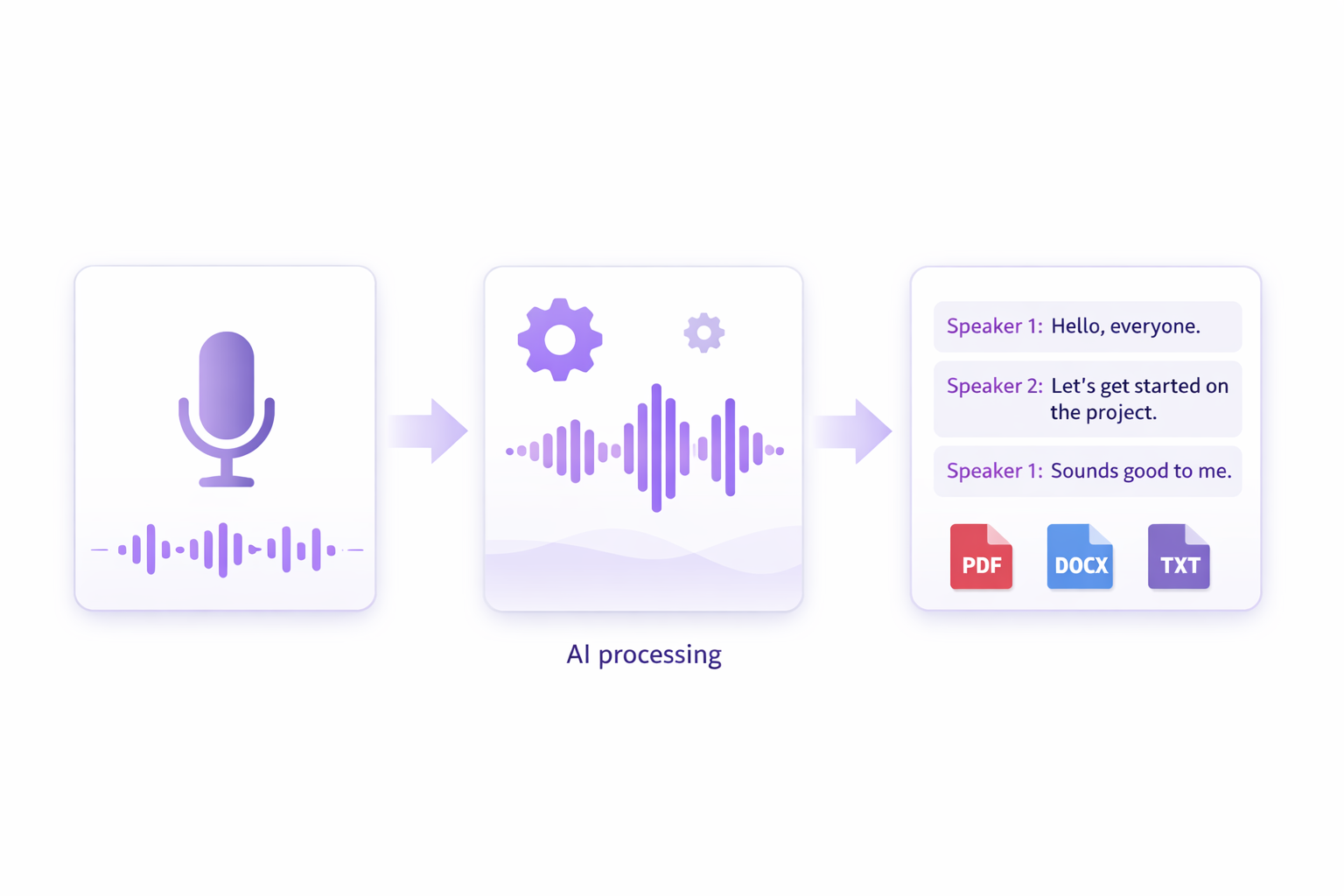
Behind the scenes, WhisperClaw:
- Uploads your audio to encrypted cloud storage
- Sends it to the Deepgram Nova-2 AI engine for processing
- Returns a transcript with word-level timestamps and speaker labels
Most files under 30 minutes process in under 2 minutes.
Step 4: Review Your Transcript
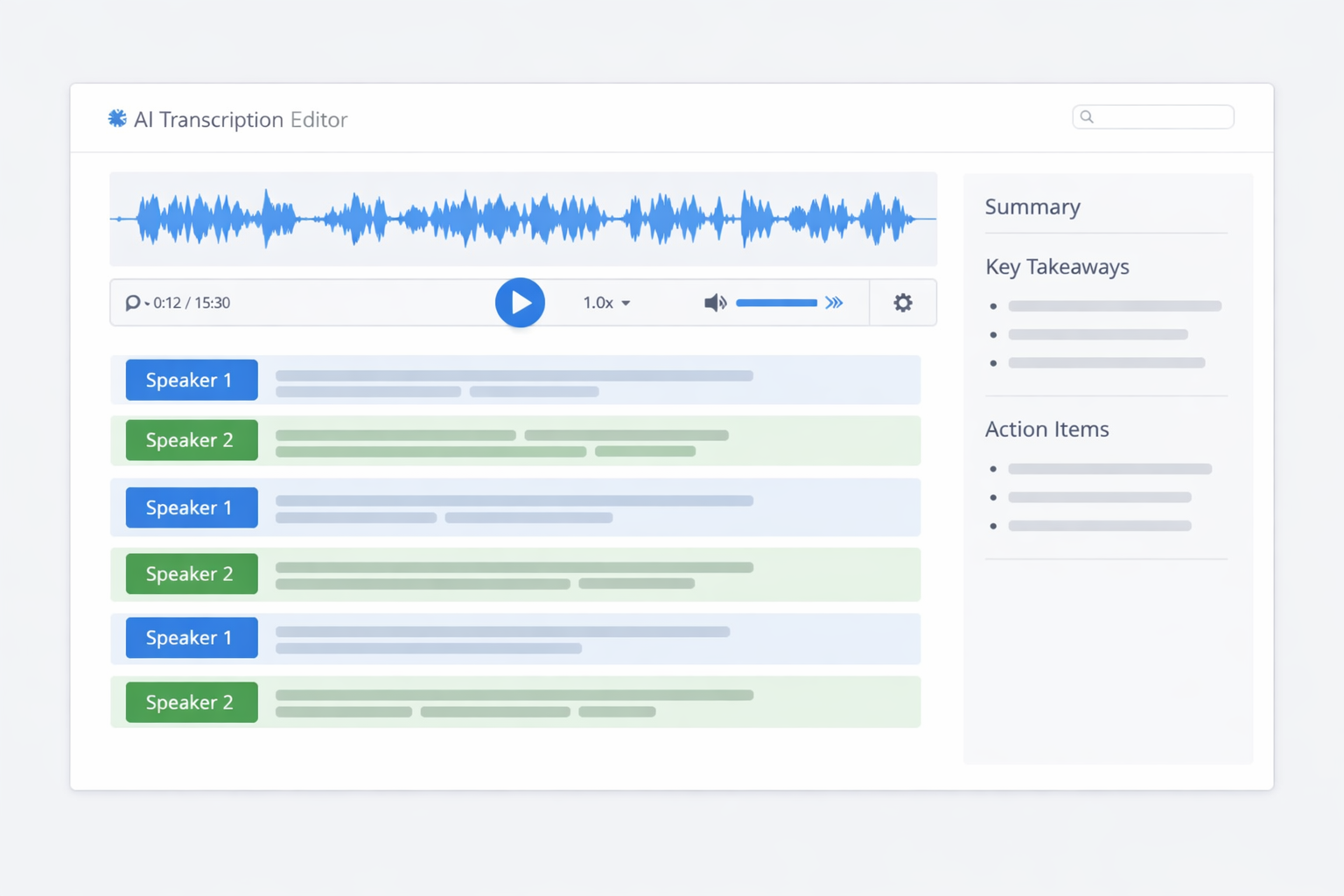
Once processing is complete, you'll see your transcript with:
- Speaker labels — each speaker is automatically identified (Speaker 1, Speaker 2, etc.)
- Timestamps — every word is timestamped so you can jump to exact moments
- Full text — continuous text you can copy, search, or edit
The transcript is interactive: click any word to jump to that point in the audio.
Step 5: Generate an AI Summary
This is where WhisperClaw goes beyond basic transcription. Click Generate Summary and choose from four specialized templates:
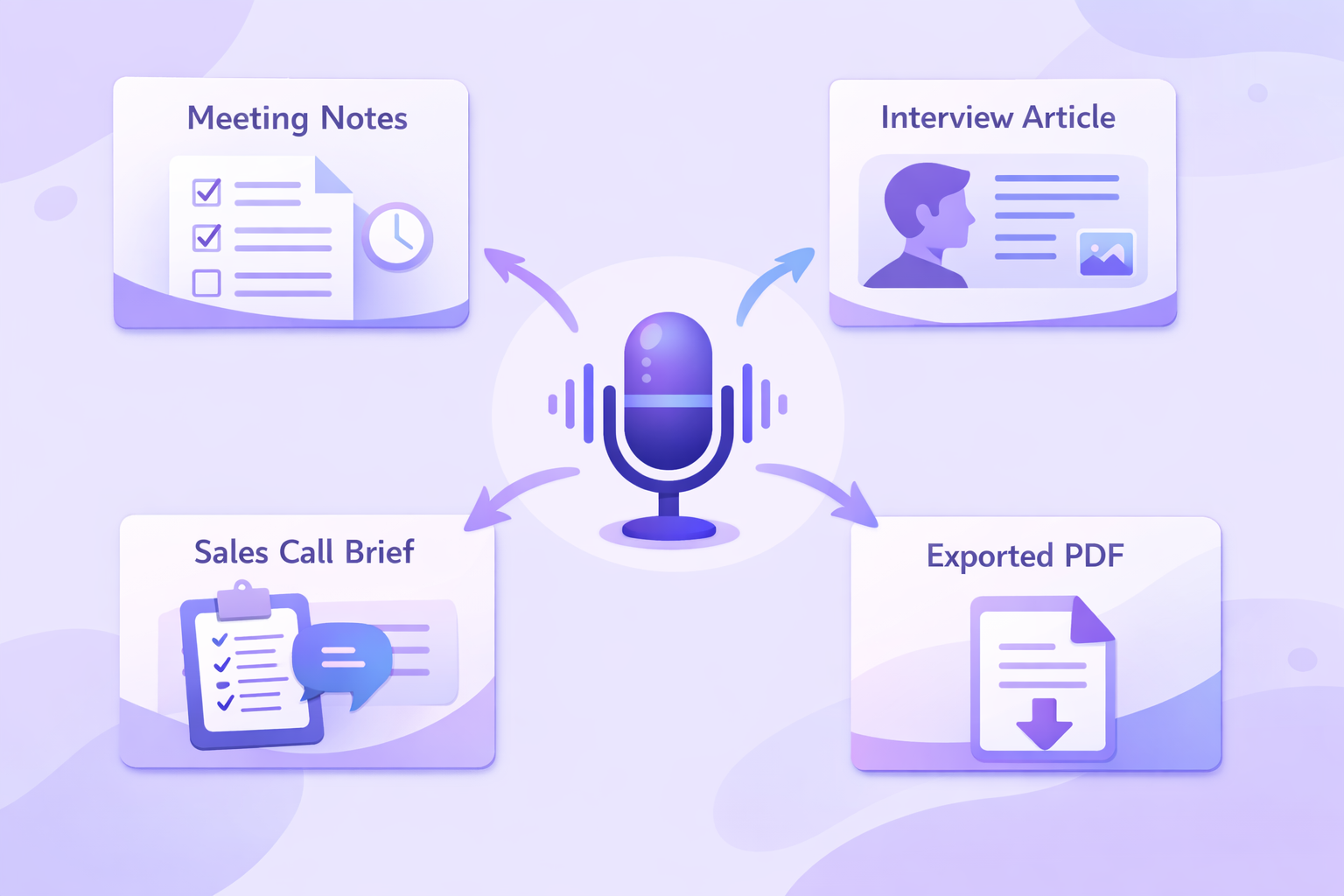
| Template | Best For | What You Get | |----------|----------|--------------| | General | Any content | Key points, main themes, action items | | Interview | Journalism, research | Quotable moments, fact-check list, article outline | | Sales Call | Sales teams | Client needs, budget signals, objections, next steps | | Meeting Notes | Teams, managers | Decisions made, action items with owners, follow-ups |
The summary is generated by AI and appears alongside your transcript. You can generate summaries using different templates on the same transcript.
Step 6: Export Your Results
WhisperClaw supports multiple export formats:
- TXT — plain text, works everywhere
- DOCX — formatted Microsoft Word document
- PDF — ready to share or archive
- SRT / VTT — subtitle formats for video
- CSV — tabular data for spreadsheets
- Markdown — for blogs, documentation, or note-taking apps
- JSON — structured data for developers
Pro users can export in all formats. Free users can export to TXT.
Practical Use Cases
Here are real scenarios where this workflow saves hours:
Journalists & Writers
Record an interview → transcribe → use the Interview template to extract quotes and build an article outline. What used to take 3–4 hours of manual transcription now takes 5 minutes.
Students & Researchers
Upload a lecture recording → get a full transcript → generate a General summary with key takeaways. Use the searchable text to find specific topics without re-listening.
Sales Teams
Record client calls → use the Sales Call template to extract objections, budget signals, and next steps. Share structured notes with your team instead of vague summaries.
Content Creators
Paste a YouTube link → get the full transcript → repurpose the text into blog posts, social media snippets, or newsletters. One video becomes five pieces of content.
Meeting Documentation
Record your team meeting → use Meeting Notes template → get a list of decisions, action items, and owners. Send it to the team in minutes, not hours.
Tips for Better Accuracy
- Use a quality microphone — built-in laptop mics work, but external mics significantly improve results
- Minimize background noise — the AI handles some noise, but clean audio gives the best transcripts
- Speak clearly — natural pace works fine; no need to slow down artificially
- Select the right language — manual language selection beats auto-detection for accuracy
- Use Speaker Mode for conversations — enable "Multiple Speakers" to get individual speaker labels
Privacy & Security
WhisperClaw takes data privacy seriously:
- Audio files are encrypted during upload and processing
- Files are deleted automatically after transcription is complete
- No audio or transcripts are used for AI model training
- GDPR-compliant data handling
- No persistent storage of your content
Free vs. Pro Plan
| Feature | Free | Pro ($12.99/mo) | |---------|------|------------------| | Transcriptions | 2 files | 1,200 min/month | | Recording limit | 10 min | 2 hours | | File size limit | 500 MB | 2 GB | | AI summaries | 3 total | Unlimited | | Export formats | TXT | All (DOCX, PDF, SRT, etc.) | | Speaker detection | Yes | Yes | | Languages | 40+ | 40+ |
Frequently Asked Questions
How accurate is AI transcription? WhisperClaw uses Deepgram Nova-2, which achieves over 90% accuracy on clear audio. Accuracy varies with audio quality, accents, and background noise.
Can I transcribe audio in one language and get the transcript in another? WhisperClaw transcribes in the spoken language. For translation, you can export the transcript and use a translation tool.
Is there a mobile app? No dedicated app, but WhisperClaw works in mobile browsers. The recording and upload interfaces are optimized for touch.
What happens if my recording is too long for the free plan? Free users can record up to 10 minutes per session and get 2 free transcriptions. Upgrade to Pro for up to 2 hours of recording and 1,200 minutes of transcription per month.
Can I edit the transcript? Yes. The transcript viewer lets you review and correct text before exporting.
Do I need to install anything? No. WhisperClaw runs entirely in your browser — Chrome, Firefox, Edge, and Safari are all supported.
How long does transcription take? Most files process in 1–3 minutes. Longer files (over 60 minutes) may take up to 5 minutes.