
How to Record and Transcribe Voice Notes with WhisperClaw
Learn how to capture voice notes directly in your browser and get AI-powered transcripts and summaries in minutes. No app downloads needed.
WhisperClaw Team
Showing English content because this locale has no published version yet.
How to Record and Transcribe Voice Notes with WhisperClaw
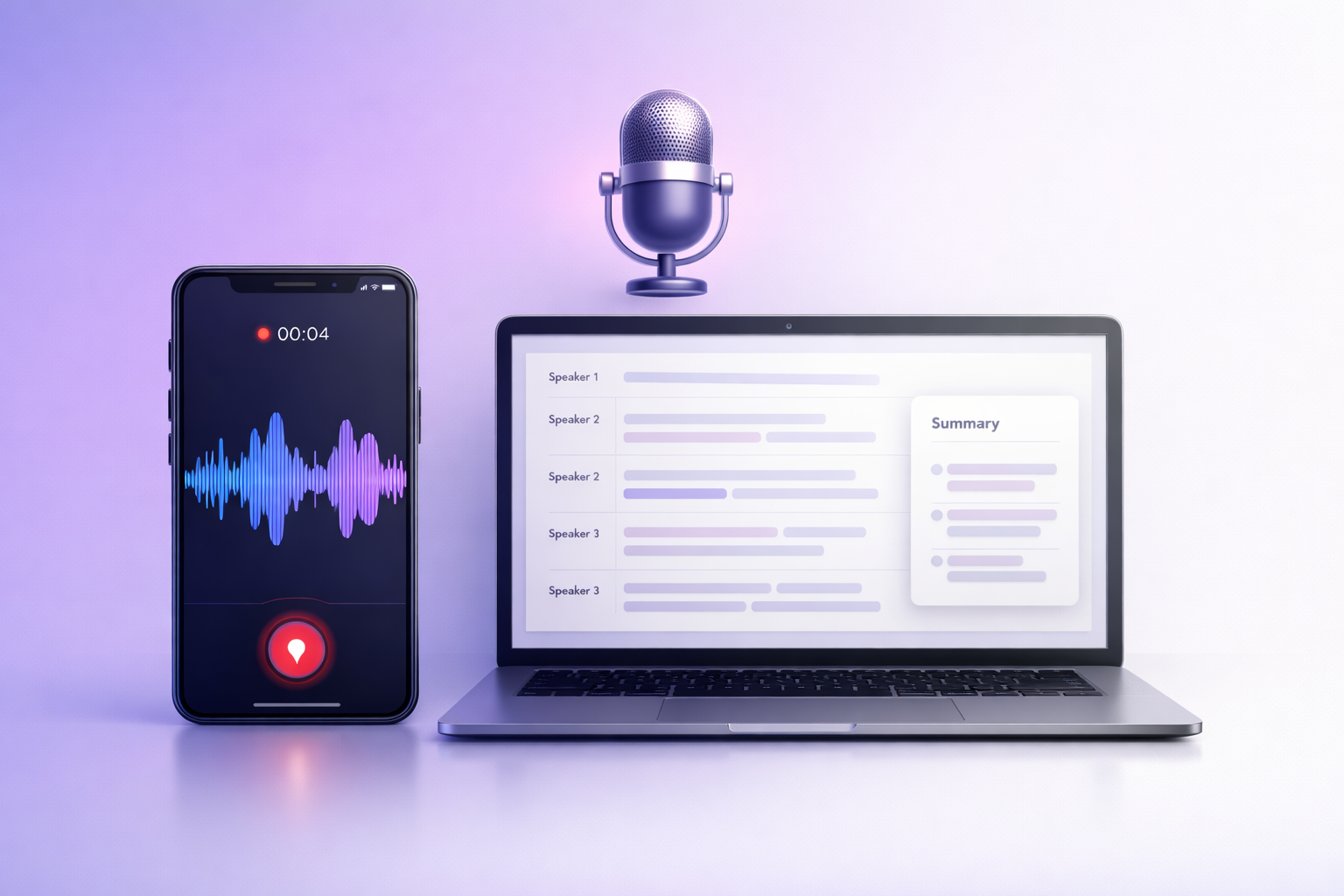
WhisperClaw lets you record voice notes directly in your browser and get AI-powered transcripts and summaries — no app downloads, no file juggling.
Why Record in the Browser?
Traditional voice-to-text workflows require multiple steps: record with one app, export the file, upload to a transcription service, wait for results. WhisperClaw eliminates all of that.
With WhisperClaw, you:
- Record directly in Chrome, Firefox, Edge, or Safari
- Get transcripts powered by Deepgram Nova-2 AI
- Generate summaries with structured templates (General, Interview, Sales Call, Meeting Notes)
- Export to TXT, DOCX, or PDF
All in one tab. No installations required.
How It Works
Step 1: Tap to Record
Open WhisperClaw and click the Record tab. Grant microphone access when prompted, then tap the record button. You'll see a real-time waveform and timer.
- Free users: Record up to 10 minutes per session
- Pro users: Record up to 2 hours per session
Step 2: Select Language
When you stop recording, you'll see a language selector. Choose the language spoken in your recording from 20+ supported languages. This ensures maximum transcription accuracy.
Step 3: Start Transcription
Click Start Transcription. If you haven't signed in yet, you'll be prompted to log in — your recording is preserved.
WhisperClaw uploads your audio to secure cloud storage and sends it to the AI transcription engine. Results typically appear in under 5 minutes.
Step 4: Review and Export
Your transcript appears with speaker labels and timestamps. From here you can:
- Generate AI summaries using different templates
- Copy the full text
- Export to DOCX, PDF, or TXT
What Makes WhisperClaw Different?
| Feature | WhisperClaw | Typical Voice Recorder Apps | |---------|---------|----------------------------| | Browser-based recording | Yes | No (requires app install) | | AI transcription | Built-in | Separate service needed | | Speaker detection | Automatic | Rarely included | | AI summaries | 4 templates | Not available | | Export formats | TXT, DOCX, PDF | Audio file only | | Languages | 20+ | Varies |
Supported Browsers
- Chrome (desktop & Android): Full support with WebM/Opus
- Firefox: Full support with WebM/Opus
- Edge: Full support with WebM/Opus
- Safari (macOS & iOS): Supported with MP4/AAC fallback
Privacy & Security
- Audio is encrypted during upload
- Files are processed and then deleted automatically
- No audio is used for AI training
- GDPR-compliant data handling
Pricing
- Free: 2 transcriptions (lifetime), 10-minute recording limit
- Pro: 1,200 minutes/month transcription, 2-hour recording limit, all export formats and summary templates
Frequently Asked Questions
Do I need to install anything? No. WhisperClaw works entirely in your browser. Just visit the website and click Record.
What audio format does it use? WhisperClaw automatically selects the best format for your browser — WebM/Opus for Chrome/Firefox/Edge, MP4/AAC for Safari.
Can I record and transcribe in different languages? Yes. Record in any language, then select the spoken language before transcription. WhisperClaw supports 20+ languages including English, Chinese, Spanish, Japanese, German, French, and more.
Is there a mobile app? No dedicated app — but WhisperClaw works in mobile browsers (Chrome on Android, Safari on iOS). The recording interface is optimized for touch.
What happens if I lose my internet connection during recording? Recording happens locally in your browser. However, you'll need an internet connection to upload and transcribe the recording.
Can I transcribe an existing audio file instead of recording? Yes. Switch to the Upload File tab to upload MP3, M4A, WAV, MP4, OGG, or FLAC files. Or use the YouTube Link tab to transcribe YouTube videos.